When opens fall off a cliff, most people rewrite the subject lines, and that's usually the wrong week of work. An email deliverability audit finds the real cause by checking five things in order: authentication, what the mailbox providers report, your bounce codes, where your list came from, and where mail actually lands.
If your ESP still says 99% delivered while sales from email go quiet, I get why that's maddening. "Delivered" only means a server accepted the message, and spam folders accept mail all day.
It's a common gap, too. Validity's 2026 Email Deliverability Benchmark put global inbox placement at 87.2% for 2025, so roughly one legitimate marketing email in eight never reached the inbox.
Below, I'll walk you through the deliverability audit I run, the evidence each step gives you, and how to rank what you find. You'll fix the thing that's actually broken instead of guessing for a month.
Let's start with how to tell you need one.
tl;dr
- Run a deliverability audit when opens drop at one provider, bounces jump, or a send gets blocked.
- Check in this order: authentication, mailbox provider data, bounce codes, list sources, then placement tests.
- Don't touch copy or send times until the first four checks come back clean.
- Score each check Pass, Warn, or Fail, and fix the Fails that sit closest to the root.
In this article
- When do you need an email deliverability audit?
- Step 1: Check authentication and alignment
- Step 2: Read what the mailbox providers report
- Step 3: Decode your bounces and blocks
- Step 4: Trace the list back to its sources
- Step 5: Test where mail actually lands
- How do you score a deliverability audit?
- Which email audit do you actually need?
- FAQ
- Final Thoughts
When do you need an email deliverability audit?
You need an email deliverability audit when the numbers change and nothing in your content explains it. The clearest signs are opens that drop at one mailbox provider but not the others, a jump in bounces or deferrals, a block notice, or a spam rate in Google Postmaster Tools creeping toward 0.3%.
That last one has a hard line behind it. Google's Email sender guidelines ask bulk senders to keep the spam rate below 0.1% and never reach 0.3%, and senders at 0.3% or above lose access to mitigation help until they've stayed under it for seven days in a row.
Here's how I read the common triggers:
| What you're seeing | What it usually points to | Where to start |
|---|---|---|
| Opens dropped at Gmail only | Gmail is filtering you, the others aren't | Step 2, then Step 4 |
| Outlook bounces with 5.7.515 | Authentication doesn't meet Microsoft's bar | Step 1 |
| Bounce rate jumped after an import | Old or bought addresses | Step 4 |
| Everything looks fine, sales from email fell | Placement you can't see in ESP reports | Step 5 |
| You're changing ESPs or adding a sending tool | Records that no longer match your senders | Step 1 |
Once you know you need one, run the five checks in a fixed order: authentication, mailbox provider data, bounce codes, list sources, then placement tests. Each layer can only be judged once the one beneath it is clean.
Think of it like a clinic visit for your sending domain. You come in with a symptom, we look at the evidence and run a few tests, and we don't call anything the root cause until it holds up.
The order matters because a list problem looks exactly like a content problem in your ESP report. An authentication problem can look like both, so skipping ahead means you fix the wrong thing with total confidence.
Pro tip: Write down the date the numbers changed before you start. Something else often changed that week too, like a new popup, an import, or a new tool sending as your domain.
Step 1: Check authentication and alignment
Start the audit by confirming that every tool sending as your domain passes SPF or DKIM and aligns with your visible From address. If it doesn't, that's your first Fail, and nothing further up the stack can be trusted until it's fixed.
You can run this step with public tools right now:
- Scan the Domain: Put your sending domain into the domain scanner to see SPF, DKIM, DMARC, and MX in one pass.
- Count SPF Lookups: Run the SPF checker and count DNS lookups. The SPF standard (RFC 7208) caps them at 10, and a record over the limit returns an error for every message.
- Confirm DKIM per Sender: Use the DKIM checker with each tool's selector, including tools outside your main ESP.
- Read a Real Header: Send yourself a campaign in Gmail, open it, and click "Show original." You want SPF, DKIM, and DMARC all showing PASS.
- Check the DMARC Record: Run the DMARC checker and make sure the
ruaaddress goes to an inbox someone reads.
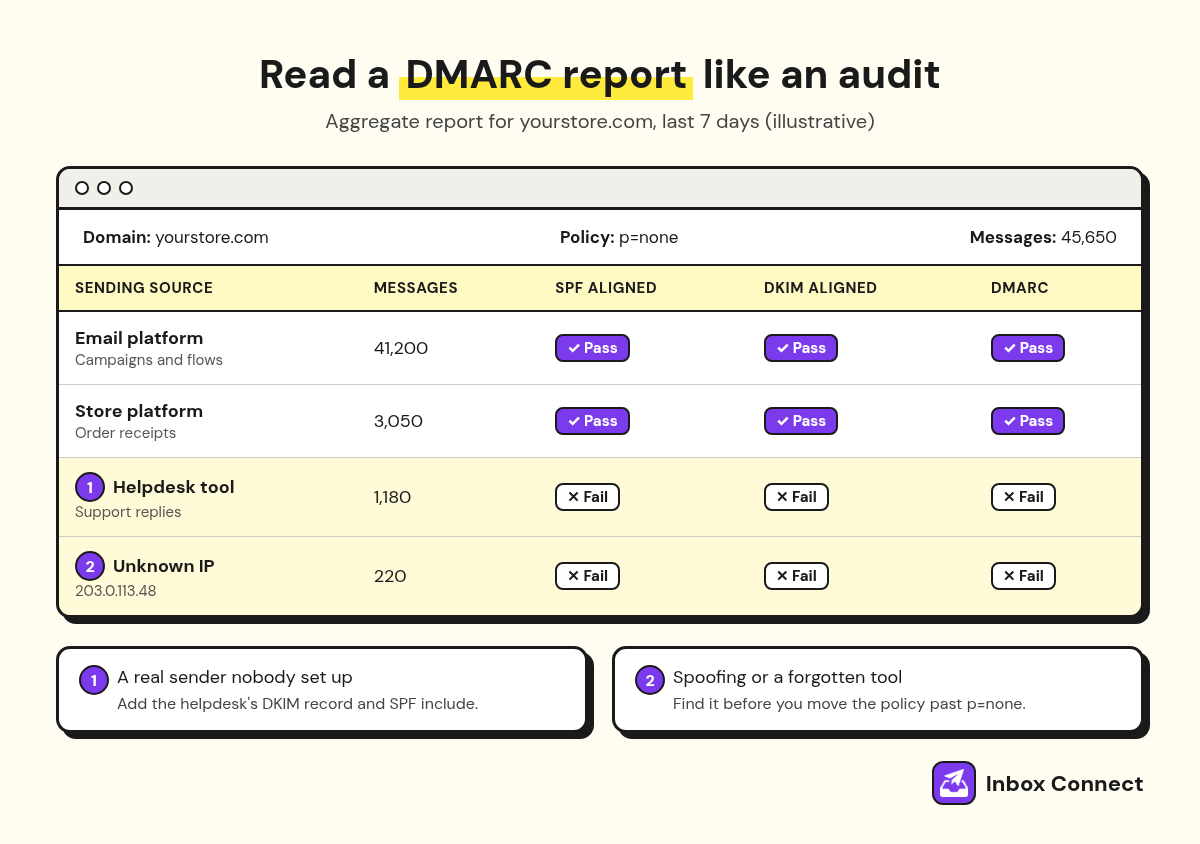
That fifth check is where audits get interesting. A DMARC aggregate report lists every server sending as your domain, which is how you find the helpdesk tool or old CRM nobody set up.
Microsoft has made this step non-negotiable for larger senders. Since May 5, 2025, Outlook's sender policies require domains sending more than 5,000 emails a day to pass SPF, DKIM, and DMARC, and mail that doesn't can be rejected with error 550 5.7.515.
Weak: "Klaviyo says our domain is verified, so authentication is fine."
Strong: "The DMARC report shows four sources. The helpdesk tool fails DKIM and one unknown IP fails everything, so we add the helpdesk's DKIM record and keep p=none until the report is clean."
For the deep DNS walkthrough, my guide to SPF, DKIM, and DMARC covers each record line by line.
Pro tip: Don't tighten DMARC to quarantine or reject during an audit. Fix the failing senders first, watch two weeks of clean reports, then move the policy, or you'll block your own receipts.
Step 2: Read what the mailbox providers report
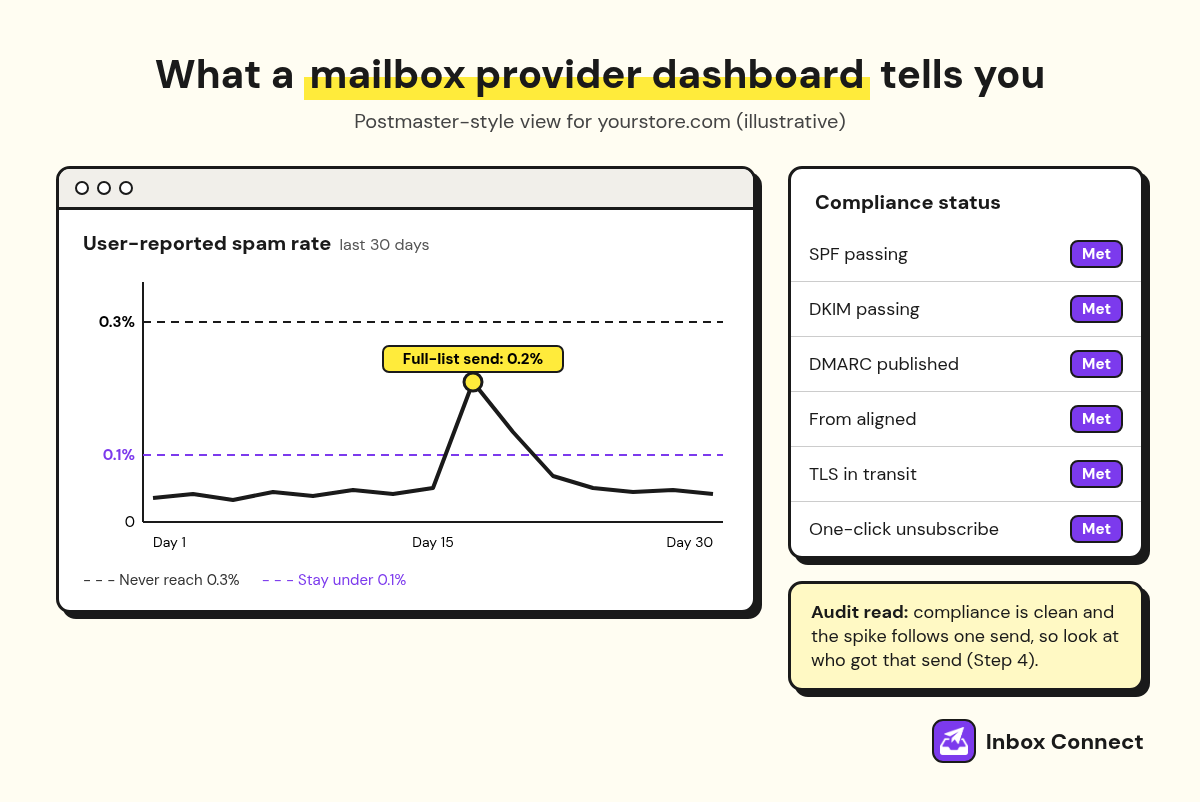
Once authentication passes, read the data the mailbox providers publish about your mail, starting with your spam rate in Google Postmaster Tools. That number tells you how often Gmail users mark you as spam, and it's the closest thing you get to Gmail's own opinion.
Postmaster Tools has changed, so set your expectations. Google's help page on the new Postmaster Tools says the old Domain and IP Reputation dashboards are being retired, and the new version adds a Compliance dashboard that shows if you meet the sender guidelines.
What I look for in the dashboard:
- Spam Rate by Day: Is it under 0.1%, and do the spikes line up with specific sends?
- Compliance Status: Does every requirement show as met, including one-click unsubscribe?
- Authentication Rates: Do SPF, DKIM, and DMARC pass rates sit near 100%?
- Delivery Errors: Are temporary rejections climbing?
Microsoft and Yahoo give you less. Microsoft's SNDS (Smart Network Data Services) covers dedicated sending IPs, and Yahoo's Complaint Feedback Loop sends you complaints so you can suppress those people.
On a shared ESP IP, the IP data belongs to the ESP, so your audit lives at the domain level.
Pro tip: Line up the spam rate spikes against your send calendar. When a spike lands the day after a send to your whole list, you've found a list problem wearing a content costume.
Step 3: Decode your bounces and blocks
Pull your bounce and deferral log, group it by error code and mailbox provider, and read what each code is telling you. Bounce codes are the most honest data in the audit, because the receiving server is literally explaining why it said no.
Most ESPs let you export bounces with the raw SMTP response. Sort by count, and the top few codes tell you which step to spend time on.
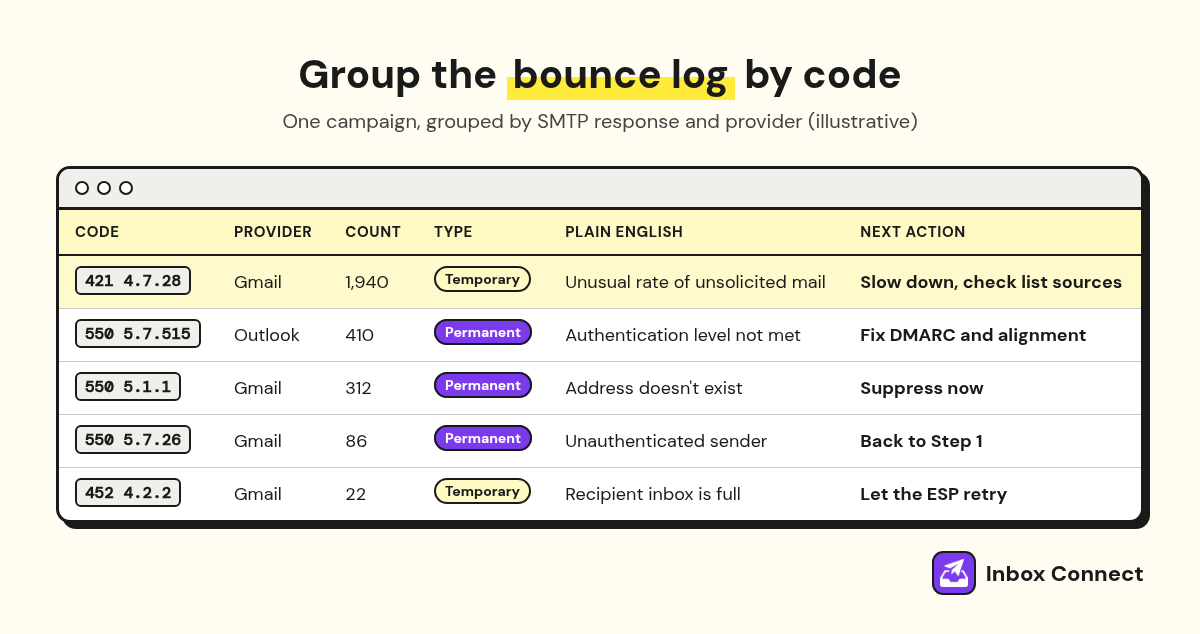
These are the codes I see most when reading a log, with Gmail's meanings from its SMTP errors and codes page:
| Code | Provider | What it means | What to do |
|---|---|---|---|
| 550 5.1.1 | Gmail | The address doesn't exist | Suppress it now |
| 421 4.7.28 | Gmail | Unusual rate of unsolicited mail | Slow down, check complaints and list sources |
| 550 5.7.26 | Gmail | Unauthenticated, or failed your DMARC policy | Back to Step 1 |
| 421 4.7.32 | Gmail | From address not aligned with SPF or DKIM | Fix alignment in Step 1 |
| 550 5.7.515 | Outlook | Doesn't meet the authentication level for bulk senders | Back to Step 1 |
A 4xx code is temporary, so your ESP retries. A 5xx code is permanent, and repeated 5xx responses to the same address should end with that address suppressed.
Blocklists belong in this step too. Run your domain and sending IP through the blacklist checker, and if you're listed, look at what changed in the weeks before, like a list import or a form hit by bots.
Step 4: Trace the list back to its sources
Next, break your engagement and complaint data down by where each subscriber came from. A deliverability audit that skips list sources misses the root cause I look hardest for: one bad source dragging down mail for everyone else.
Every ESP stores a source or signup method on the profile. Group profiles by it, then compare clicks, bounces, and complaints for each group over 90 days.
Weak: "Our list is 60,000 people and the average click rate is fine."
Strong: "Our popup and checkout sources click at normal rates, but the 9,000 addresses imported from an old trade show list have a 6% bounce rate and most of our complaints, so they come out of campaigns today."
Those numbers are illustrative, but the pattern is worth hunting for. Averages hide the bad source, and splitting by source makes it obvious.
Then check how much of each send goes to people who haven't engaged in months. Opens are inflated by Apple Mail Privacy Protection, so judge engagement on clicks, and on opens only from non-Apple inboxes.
If an old segment needs to go, an email sunset policy gives them a last chance before you suppress them, and email list cleaning covers validating an import before you mail it.
Pro tip: Check your signup forms for bots while you're here. A 3 a.m. wave of random-looking sign-ups is how spam traps get onto clean lists.
Step 5: Test where mail actually lands
Finish by checking where your mail actually lands at each provider, using seed tests plus your ESP's results split by recipient domain. This is the step that confirms the earlier findings, so it comes last, not first.
Seed tests send a campaign to a panel of test inboxes and report inbox, spam, or missing for each. Seeds never open or click, and Gmail filters each person a bit differently, so treat a seed result as a smoke alarm rather than a verdict.
Your own data by recipient domain is better evidence. If Gmail clicks halved while Yahoo and Outlook held steady, that's a Gmail placement problem.
| Signal | What it tells you | Limit |
|---|---|---|
| Seed test | Inbox or spam at each provider for one send | Seeds never engage like real people |
| Clicks by recipient domain | Where real people stopped seeing you | Needs enough volume per provider |
| Your own test inboxes | What the message looks like on arrival | Your own history skews it |
Pro tip: Keep one Gmail and one Outlook address that you never open marketing mail from, and add them to every campaign. They give you a rough, unbiased look at where a brand-new subscriber would see you.
How do you score a deliverability audit?
You score a deliverability audit by marking each of the five checks Pass, Warn, or Fail, writing the evidence next to it, and fixing the Fails from the bottom of the stack up. A one-page scorecard keeps the audit honest, because every claim needs a piece of evidence beside it.
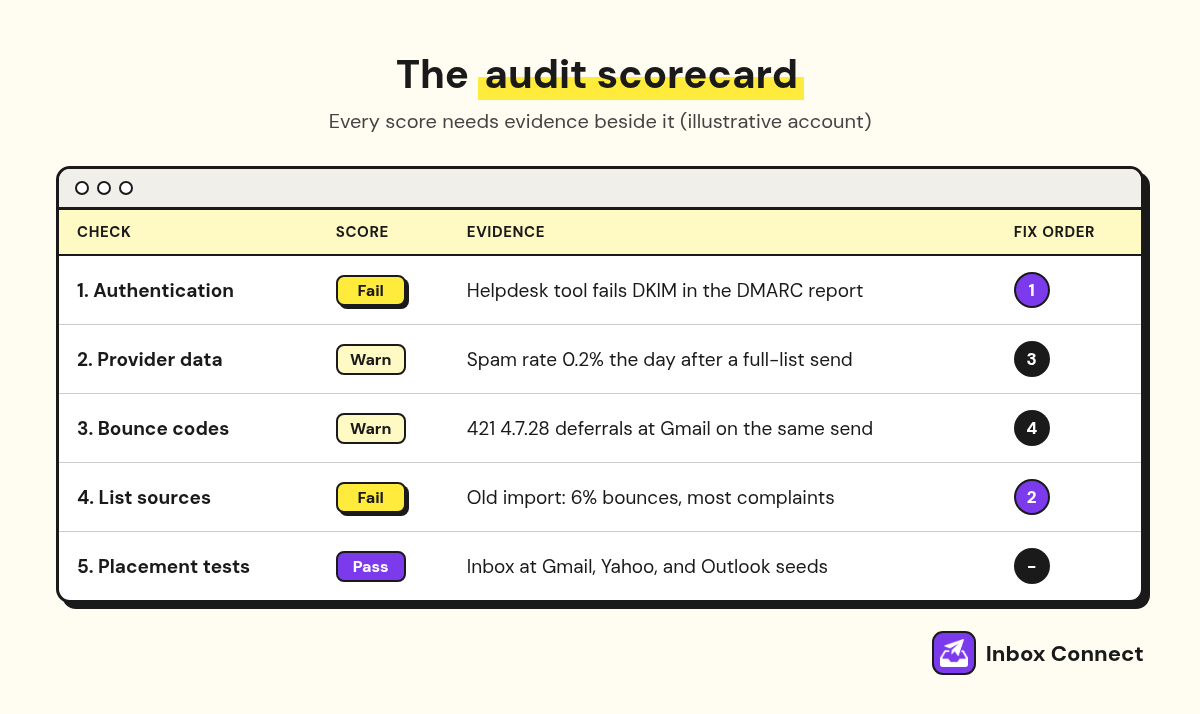
The order I rank fixes in:
- Authentication Fails: Nothing else improves while mail fails DMARC or alignment.
- Blocks and Blocklist Listings: Mail that never arrives can't earn engagement.
- The Worst List Source: Pull it from campaigns before the next send.
- Spam Rate Above 0.1%: Send to engaged segments only until it settles.
- Content and Cadence: Only now does copy, frequency, or send time get a look.
Then put a recheck on the calendar: Day 7 for spam rate and bounces, and Day 14 for clicks by recipient domain and a clean DMARC report, before you decide the fix worked.
Which email audit do you actually need?
You need a deliverability audit when the question is whether your mail reaches the inbox, and a different audit when the question is revenue or flows. A program audit and an automation audit ask those wider questions.
| Audit | Question it answers | Go there when |
|---|---|---|
| Deliverability audit | Why isn't mail reaching the inbox? | Placement, bounces, or spam rate changed |
| Email program audit | Is the whole program healthy and making money? | You want a full health check across list, campaigns, flows, and revenue |
| Email automation audit | Are the automated flows built and timed right? | Flow revenue is flat or the flows are old |
If you're not sure where your problem lives, the program audit is the wider net. Run this deliverability audit when the evidence already points at the inbox.
For the habits that stop a problem coming back, my guide on how to improve email deliverability covers the weekly routine. The deliverability checklist is the quick version to run between audits.
You can run a deliverability audit yourself if you have DNS access, an ESP bounce export, and a few focused hours. Hand it off when the evidence conflicts, when a major provider is blocking you, or when nobody can say which tools send as your domain.
On the accounts I work on, this is part of Email DDx, the structured diagnosis I run before fixing anything. It's a paid audit and fix on its own, and it comes included when you start Managed Email for a Klaviyo account.
Whoever runs it, ask for the scorecard. You should end up with evidence and a ranked fix list, not a slide that says "opportunities identified."
FAQ
How long does an email deliverability audit take?
An email deliverability audit takes about two to four hours for one sending domain if you have DNS and ESP access. Add time if you have several sending tools, or if you need a week of DMARC reports before you can read the pattern.
How often should you run a deliverability audit?
Run a full deliverability audit once a quarter, and any time you change ESPs, add a sending tool, or import a list. Between audits, a weekly look at spam rate and bounces catches most slips early.
Do spam trigger words matter in a deliverability audit?
Spam trigger words matter very little in a deliverability audit compared with authentication, complaints, and list sources. My take on spam trigger words explains why filters weigh patterns and engagement over vocabulary.
Can a deliverability audit fix a blocklist listing?
A deliverability audit finds why you were listed, and that cause has to be fixed before a removal request sticks. Most blocklists explain their removal process on their own lookup pages, so request removal only after the bad source is out of your sends.
What's the difference between delivery rate and inbox placement?
Delivery rate counts messages a receiving server accepted, and inbox placement counts the ones that reached the inbox instead of spam. A 99% delivery rate can still hide a serious spam folder problem, which is why the audit looks past your ESP's delivered number.
Final Thoughts
Pick the date your numbers changed, then run Step 1 today: scan your domain, read one real header, and check where your DMARC reports go. If that comes back clean, work through provider data, bounce codes, and list sources before you touch a single subject line.
If you'd rather have the diagnosis and the fixes handled for your Klaviyo account, you can apply for Managed Email. Either way, you now have the order to work in and the evidence to look for.
Russ