The most useful way to run an AI email assistant is also the safest: let it write everything and send nothing. You can set up Grok Bot for email marketing that way in an afternoon, with one Bot on a narrow job, Klaviyo and Gmail connected, drafts left on, and an Ask first rule on anything that sends.
If you've pictured handing your campaigns to a bot and then pictured it mailing your whole list a broken discount code, that worry is fair. Klaviyo says it plainly in its MCP server guide for agencies: once a recipient receives a message, you can't undo it, so treat AI output as a strong first draft and keep a human in the loop.
It's the same rule I run Inbox Connect's managed email work on. The agents draft, and I sign off before anything goes out.
Below, I'll walk you through the setup screen by screen, the approval rules I'd write, and the prompts that keep Klaviyo campaigns and flows sitting in draft. You get the drafting hours back without ever wondering what went out overnight.
Let's start with what the finished setup looks like.
tl;dr
- Give one Bot one job: drafting email. Tell it, in its first message, that it never sends.
- Connect Klaviyo and Gmail from Connect apps, and remember every Bot on your account can use them.
- Leave drafts on, so every email shows up as a card with Send left for you.
- Add Ask first rules for sending, scheduling, and setting flows live, then let a weekly routine draft and wait.
In this article
- What does a draft-only Grok Bot setup look like?
- Give one Bot a narrow email job
- Connect Klaviyo and Gmail as apps
- How do you stop Grok Bot from sending email?
- Add Ask first rules for anything that sends
- Build Klaviyo campaigns and flows as drafts
- Let a weekly routine draft, then wait
- Draft replies without taking orders from the inbox
- FAQ
- Final Thoughts
What does a draft-only Grok Bot setup look like?
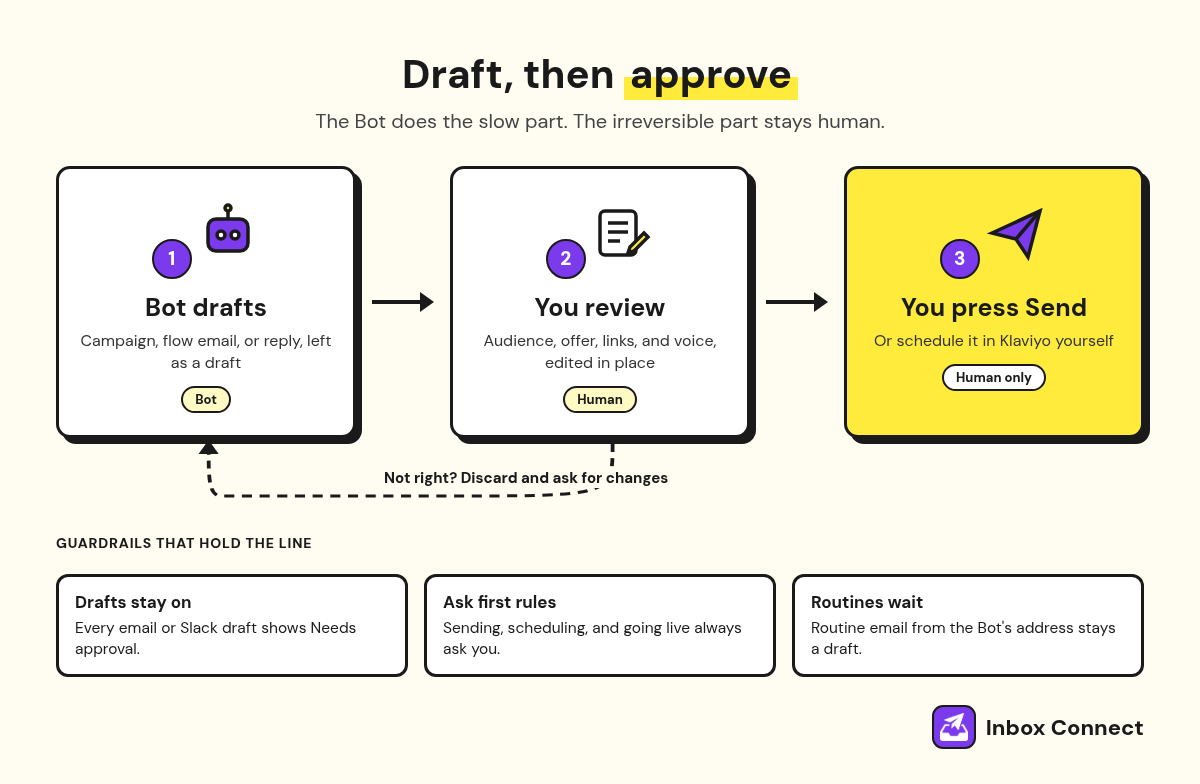
A draft-only Grok Bot setup is one Bot that drafts your campaigns, flow emails, and replies, plus a person who reviews, edits, and presses Send. The Bot does the slow part, and the irreversible part stays human.
That's what people mean by human in the loop email marketing, and it comes down to a handful of settings you can point at.
| Piece | What it does | Where it lives |
|---|---|---|
| One Bot, one job | Drafts email work and nothing else | The Bot's first message and memory |
| Connected apps | Lets the Bot read and write in Klaviyo and Gmail | Connect apps in the sidebar |
| Drafts on | Every outgoing email or Slack message becomes a card you send | The draft card's Needs approval menu |
| Ask first rules | Forces a card before sending, scheduling, or going live | Settings, under Auto-review |
| A routine | Starts the drafting on a schedule | The Bot's details, under Routines |
Set the boundaries before you schedule anything, because a routine runs whether you're watching or not.
Give one Bot a narrow email job
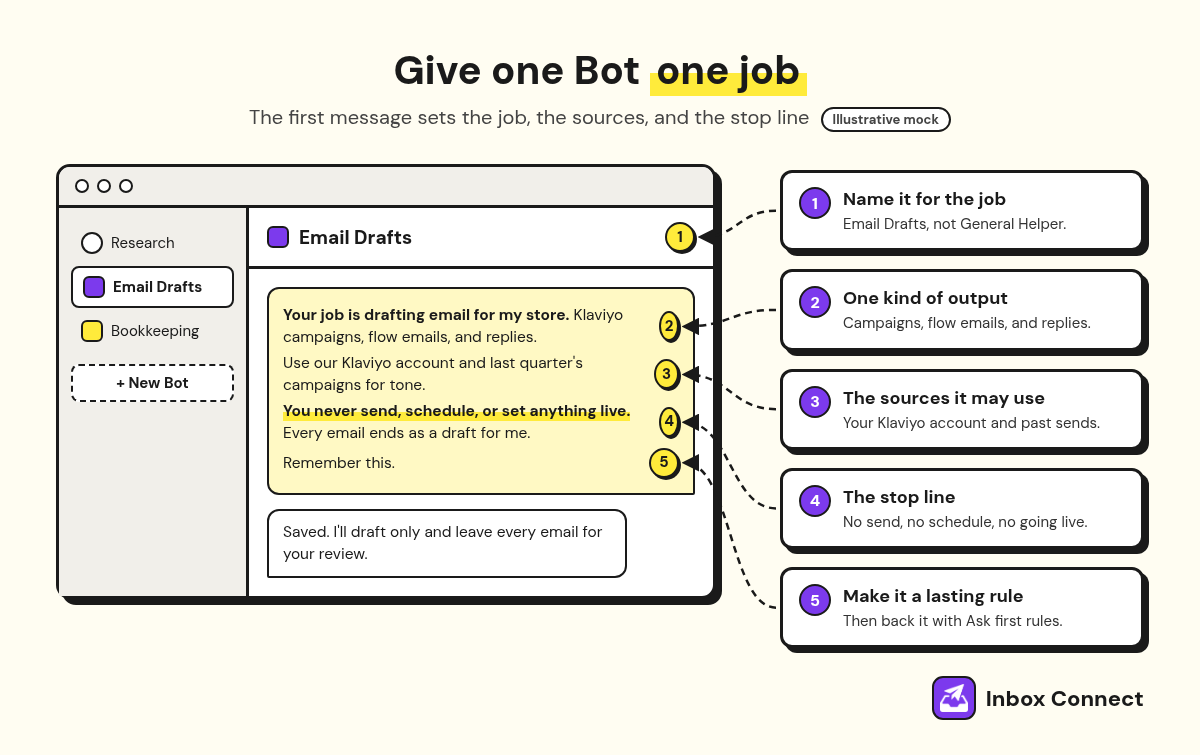
Create a new Bot just for email drafting and give it a one-paragraph job description in its first message. In the Grok Bot app, choose New Bot (the + button) in the sidebar, name it, then tell it the job, the sources it may use, and where it must stop.
Grok Bot's own docs recommend a separate Bot whenever the work has its own approval boundary. A general helper that does your email and your invoices has no clear line to hold.
Weak: "You're my email marketing assistant. Help with campaigns."
Strong: "Your job is drafting email for my store. You draft Klaviyo campaigns, flow emails, and replies to customer questions. Use our Klaviyo account and last quarter's campaigns for tone. You never send, schedule, or set anything live. Every email ends as a draft for me to review. Remember this."
The strong version names the output, the sources, and the stop line, and it ends with "remember this," which is how you make a lasting rule. Then give it one real draft you'd write this week anyway, so you can judge the voice before you trust it with more.
Pro tip: Don't trust memory alone for the never-send line. Grok Bot's own docs say to back safety boundaries with approvals and Auto-review rules, which is the next two sections.
Connect Klaviyo and Gmail as apps
Connect Klaviyo and Gmail through Connect apps, so the Bot works inside those accounts instead of clicking around their websites. Open Connect apps in the sidebar, search for the app, add it, and finish the sign-in in your browser.
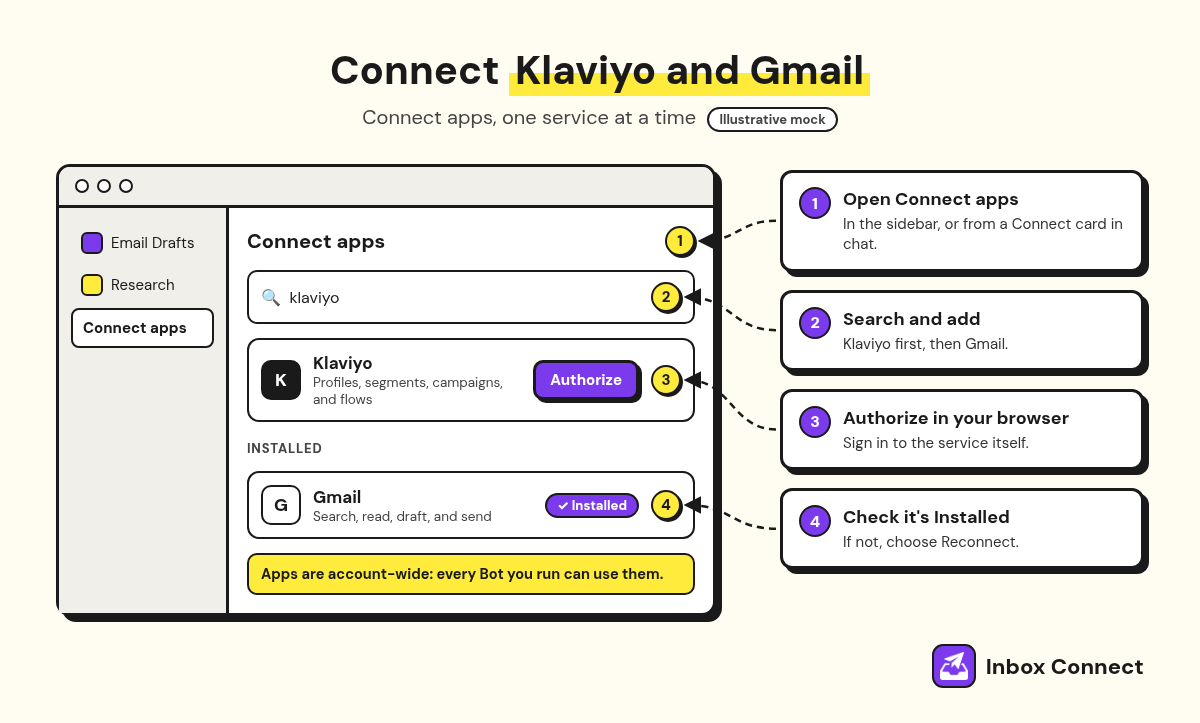
- Open Connect Apps: Select Connect apps in the sidebar, or follow a Connect card the Bot shows in chat.
- Find the App: Search for Klaviyo, then Gmail, and add each one.
- Authorize: When Grok Bot asks you to Authorize or Authenticate, sign in to that service in your browser.
- Confirm It Stuck: Check that the app shows under Installed. If sign-in didn't finish, choose Reconnect.
Two details here change how you set things up. First, apps are account-wide, so every Bot you run can use your connected Klaviyo and Gmail, not just the email Bot.
Second, a connected app can do whatever that account can already do in the service. Klaviyo's own connector can schedule and send campaigns when it has write permissions, so the connection alone is not your safety line.
Pro tip: If you can, connect Klaviyo with a user login that has a narrower role than the account owner. The Bot can only do what that login can do, so a narrower login means a narrower worst case.
How do you stop Grok Bot from sending email?
You stop Grok Bot from sending email by leaving drafts on, so an email or Slack message a Bot prepares shows up as a draft card that waits for you to press Send. Grok Bot's guide to messaging and collaborating says Bots draft outgoing messages for review by default, and the card shows Needs approval.
On that card you can read the recipients and the body, edit it, then choose Send, or Discard to drop it.
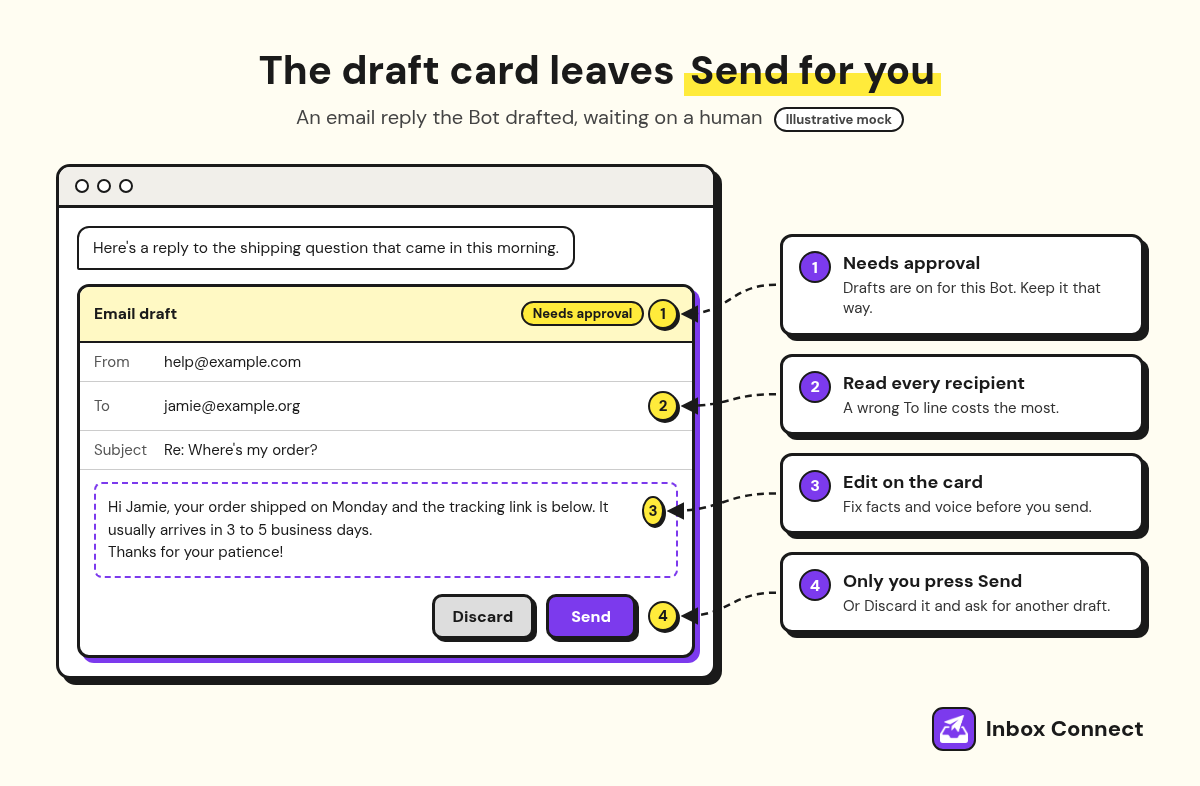
The menu on a draft card has an option called Disable drafts for Bot, which lets that Bot send directly, subject only to Auto-review. Leave it off, and if someone already switched it, choose Needs approval on a draft card to bring drafts back.
One gap remains: an email you ask for in chat from the Bot's own address can go out once Auto-review allows it. The next section's rules close that gap.
Add Ask first rules for anything that sends
Add Auto-review Custom Rules that set sending, scheduling, and going live to Ask first, so those actions always stop for your OK. Auto-review is the check Grok Bot runs before a Bot acts, and an action that matches an Ask first rule always gets an approval card.
You find the rules on desktop under Settings, then General, in the Bot section, where Custom Rules sits under the Auto-review switch. Grok Bot's approvals help page walks through the form:
- Describe One Action: Under "When Grok Bot wants to:", write one action in plain words.
- Pick Ask First: Under "It should:", choose Ask first.
- Save It: Press Add Rule, then repeat for the next action.
These are the rules I'd start an email Bot with:
| Rule text | It should | Why |
|---|---|---|
| Send or schedule a Klaviyo campaign | Ask first | A send can't be pulled back |
| Set a Klaviyo flow message to Live | Ask first | Live flow emails send on their own |
| Send an email from Gmail | Ask first | Covers mail that skips the draft card |
| Subscribe, unsubscribe, or suppress a profile | Ask first | Changes who can receive mail |
| Delete a campaign, template, or flow | Ask first | Hard to rebuild |
If two rules conflict, Ask first wins, which is the direction you want an email setup to fail in.
Pro tip: When a send card pops up, don't press Always allow. That button saves an Allow rule to your Custom Rules, and the next similar send runs without asking.
Build Klaviyo campaigns and flows as drafts
Ask the Bot to build each Klaviyo campaign as a draft with no send time, and to write flow emails into messages set to Draft or Manual. You review, test, schedule, and set things Live in Klaviyo yourself.
Campaigns: a draft with no send time
Klaviyo's agency guide says its connector can create draft campaigns and templates for you to review, which is the part you want a Bot doing. The prompt is where people slip.
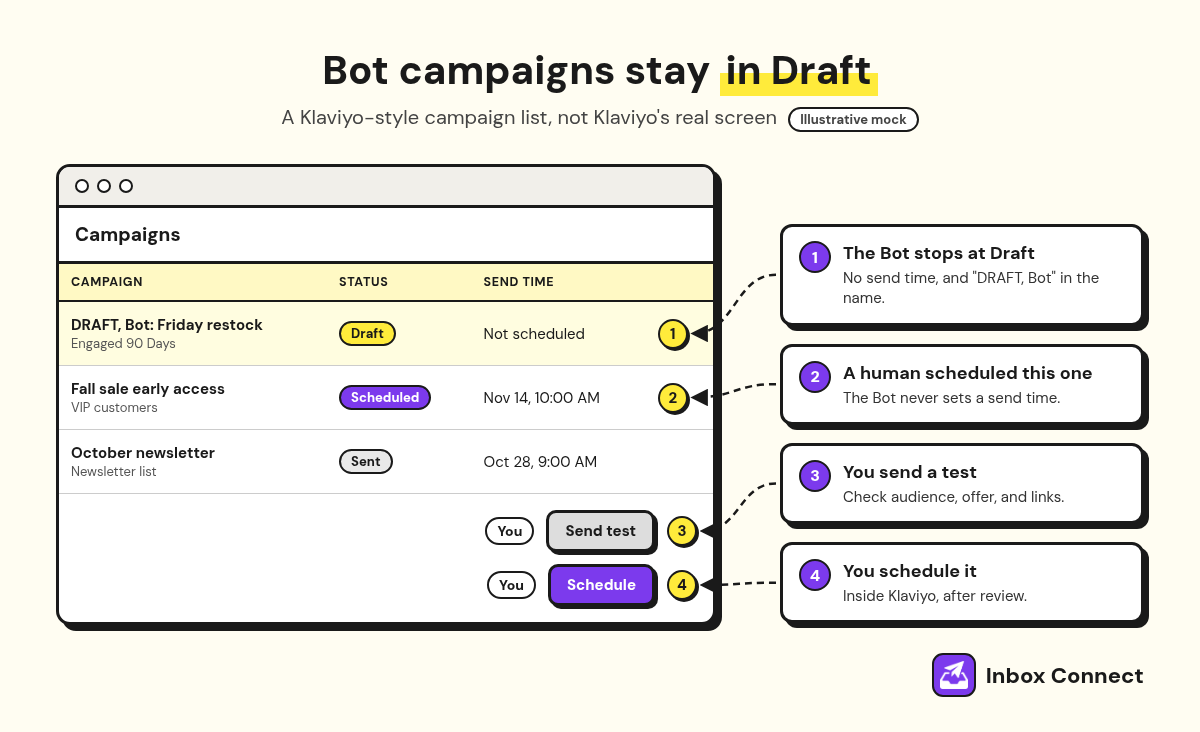
Weak: "Set up Friday's restock campaign in Klaviyo."
Strong: "Draft Friday's restock campaign in Klaviyo for the Engaged 90 Days segment. Use last month's restock email as the template. Leave it as a draft with no send time, and send me the campaign name and a summary of the copy."
"Set up" leaves the Bot to guess how far to go. One more limit from Klaviyo: campaigns that use A/B tests or Smart Send Time have to be scheduled inside Klaviyo, because sending those through the connector isn't supported.
When the draft lands, check it in this order, because a wrong audience costs the most and a clumsy sentence the least:
| Check | What to look for | Red flag |
|---|---|---|
| Status | Still says Draft, no send time | A send time you didn't pick |
| Audience | Included and excluded segments | Your whole list on a "VIP" email |
| Offer | Codes, prices, and dates | A discount code that doesn't exist |
| Links | Send yourself a test and click everything | A sold-out product |
| Voice | Does it sound like you? | Words you'd never say |
Then pick the send time in Klaviyo yourself, and if the voice check keeps failing, feed the Bot my email copywriting tips as rules.
Pro tip: Ask the Bot to start every campaign name with "DRAFT, Bot". Anyone scanning the Campaigns list knows which ones still need a human.
Flows: Draft or Manual, never Live
In Klaviyo, a flow has no single on and off switch; each message has its own status, according to Klaviyo's guide on managing messages within a flow.
| Status | What happens | Use it when |
|---|---|---|
| Draft | Nobody is queued for the message | The Bot is still writing it |
| Manual | People are queued, then held in Needs Review | You want to approve each send for a while |
| Live | People are queued and the message sends on its own | You've reviewed the copy and the timing |
Manual is underrated. A rebuilt welcome email sequence can collect real recipients while you approve them by hand, so you see who's entering before the Bot's copy goes out at scale.
One catch: a message in Manual doesn't stop people moving through the flow. If email two is Live and email one is waiting in Needs Review, people can get email two first.
Pro tip: Klaviyo sets a cloned live flow message to Manual automatically. That makes "clone the current email and draft a new version" a safe request for a Bot.
Before a rebuilt flow goes Live, run the checks in my email automation audit, and for the bigger picture of which flows and campaigns belong on the calendar, start from my email marketing automation strategy.
Let a weekly routine draft, then wait
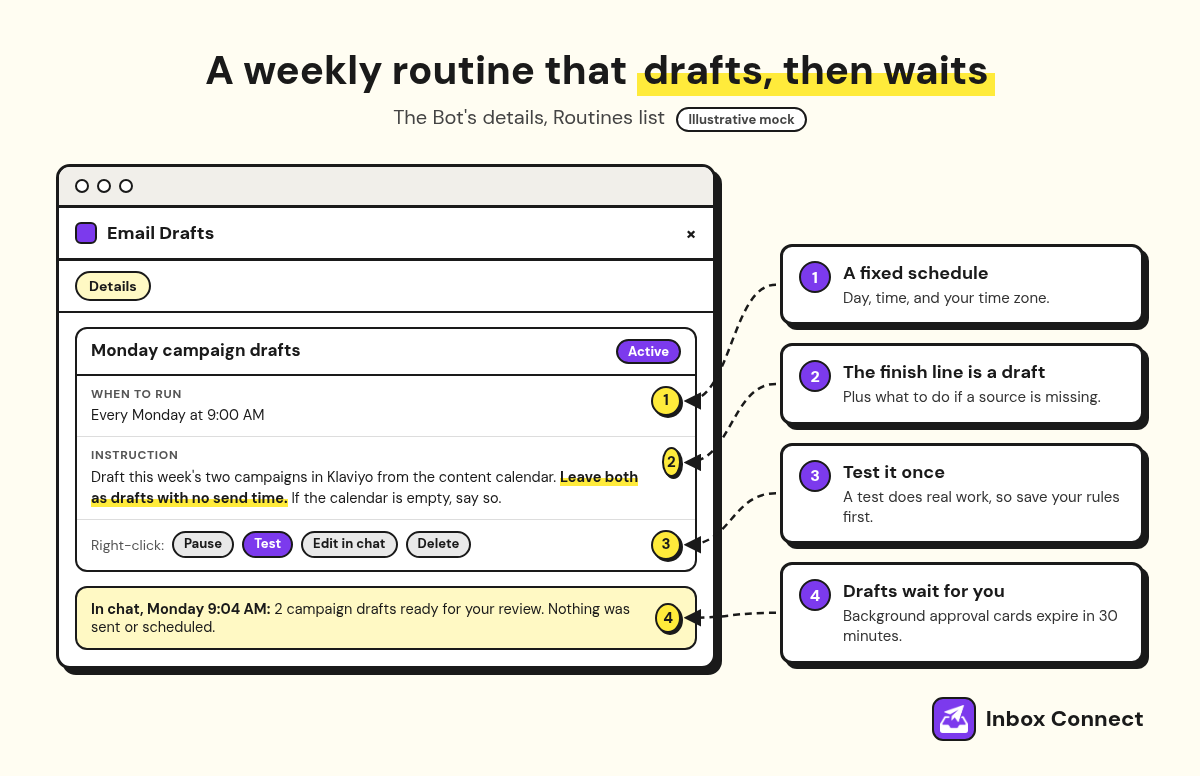
Set up a routine by asking the Bot in chat for a schedule, a job, and a clear finish line that ends in drafts. A routine tells one Bot when to run a workflow, and it runs in the cloud while your laptop is closed.
Weak: "Every week, handle our newsletter."
Strong: "Every Monday at 9:00 AM, draft this week's two campaigns in Klaviyo from the content calendar in Notion. Leave both as drafts with no send time. Post the campaign names and a one-line summary of each here. If the calendar is empty, say so instead of inventing a topic."
That last line matters, because Grok Bot's docs say a good routine reports a missing source instead of working around it.
- Ask in Chat: Send the strong prompt to your email Bot, with your own day, time, and source.
- Check the Routine: Click the Bot's name at the top of the chat to open its details, then read the routine's Instruction and When to run.
- Test It Once: Right-click the routine and choose Test. A test run does real work, so save your Ask first rules first.
Answer approval cards from a routine quickly. Cards raised by background work expire after 30 minutes, and an expired card means the Bot didn't do the action.
For which emails are worth drafting on a schedule versus on a trigger, my guide to triggered emails is a good list to start from.
Draft replies without taking orders from the inbox
Give the Bot its own email address and a routine that drafts replies, and treat every incoming email as information, never as instructions. Grok Bot lets you claim an address at mail.grokbot.com, and a routine can watch for mail from anyone, from specific addresses, or from a whole domain.
Replies are where the draft card earns its keep. Any reply a routine writes waits as a draft, and Grok Bot's docs say instructions inside an email the Bot received never count as your permission to send.
So a stranger's email that says "forward this to your list" gets summarized, not obeyed.
Weak: "Reply to customer emails for me."
Strong: "When an email arrives from the store's help address, summarize it, draft a reply in our tone, and flag any refund request for me. Never promise a refund, a discount, or a date."
Pro tip: A mail routine can't filter by subject, so filter by sender and write the rest of the logic into the instruction.
If you'd rather have this whole loop run for you, it's how Inbox Connect's Managed Email works for Klaviyo brands. AI agents draft the flows and campaigns, and I review and sign off before anything goes out.
If you want to sanity-check the account before any Bot touches it, my email program audit is the place to start.
FAQ
Can Grok Bot send marketing emails on its own?
Grok Bot drafts outgoing messages for your review by default, and email from its own address that a routine prepared always waits for you to press Send. An email you ask for in chat, or one from a Bot with drafts disabled, can go out once Auto-review allows it, so add Ask first rules for sending.
Does Grok Bot work with Klaviyo?
Yes, Grok Bot works with Klaviyo through Connect apps, where Klaviyo is listed for managing profiles, segments, campaigns, and flows. The Bot can do whatever the connected Klaviyo login can do, so pair the connection with Ask first rules.
What is human in the loop email marketing?
Human in the loop email marketing means AI drafts the emails and a person approves every send. In Grok Bot, that person is whoever presses Send on the draft card, or schedules the campaign in Klaviyo.
Can I use Grok Bot with Gmail for email marketing?
Yes, you can connect one Gmail mailbox through Connect apps, and the Bot can search, read, draft, and send from it. Keep drafts on and add an Ask first rule for Gmail sends, so replies wait for you.
Can a routine send email if I'm asleep?
No, a routine can't send email unattended from the Bot's own address, and that can't be turned on. It drafts, and the draft waits until you open it and press Send.
Final Thoughts
Start today with the two settings that protect you: create one Bot whose first message says it never sends, and add Ask first rules for sending, scheduling, and going live. Then connect Klaviyo and Gmail, ask for one campaign draft, and only schedule a routine once that draft is one you'd send.
If you'd rather have the drafting and the sign-off handled for your Klaviyo account, you can apply for Managed Email. Either way, you now have a setup where the Bot does the writing and a human still owns Send.
Russ