When a Mailchimp to Klaviyo move goes sideways, it's rarely because someone skipped a step. You can migrate from Mailchimp to Klaviyo cleanly by doing the steps in a set order: the store, then your sending domain, contacts, tags, templates and flows, then forms.
If you've got both dashboards open and you're not sure what actually comes across, that's the right worry to have. Klaviyo's own Mailchimp migration guide warns that if Mailchimp is still connected to your Shopify store when you sync, your existing subscribers can get double opt-in emails.
That's a "please confirm" email to people who confirmed years ago. Not the first impression you want from a new platform.
Below, I'll show you what Klaviyo's Mailchimp integration moves for you, what you carry over by hand, and the checks I run before switching Mailchimp off. You'll end up with a migration plan that keeps your subscribers, your suppressions, and your sender reputation intact.
Let's start with the order.
tl;dr
- Connect your store to Klaviyo, and disconnect Mailchimp from the store, before anything else.
- Set up a branded sending domain, then sync Mailchimp with the built-in integration, including open and click data.
- Tags, custom fields, drag-and-drop templates, automations, and forms don't come across. Move those by hand.
- Warm up on an engaged segment, test the full journey, remove the integration, and only then clean up Mailchimp.
In this article
- Migrate from Mailchimp to Klaviyo in this order
- Connect your store and sending domain first
- What does the Klaviyo Mailchimp integration move?
- Rebuild templates and swap the merge tags
- Rebuild automations as Klaviyo flows
- Warm up on an engaged segment from Mailchimp data
- Switch your forms, then sunset Mailchimp
- What usually breaks in a Mailchimp to Klaviyo migration?
- FAQ
- Final Thoughts
Migrate from Mailchimp to Klaviyo in this order
Migrate from Mailchimp to Klaviyo in six moves: connect your store, set up your sending domain, sync contacts, carry over tags and fields, rebuild templates and flows, then switch forms and sunset Mailchimp. Each move depends on the one before it, which is why the order matters more than speed.
Klaviyo's guide lists four steps: integrate your store, integrate Mailchimp, migrate templates, and sunset Mailchimp. I split out the sending domain and the hand-carried data, because that's where people get caught.
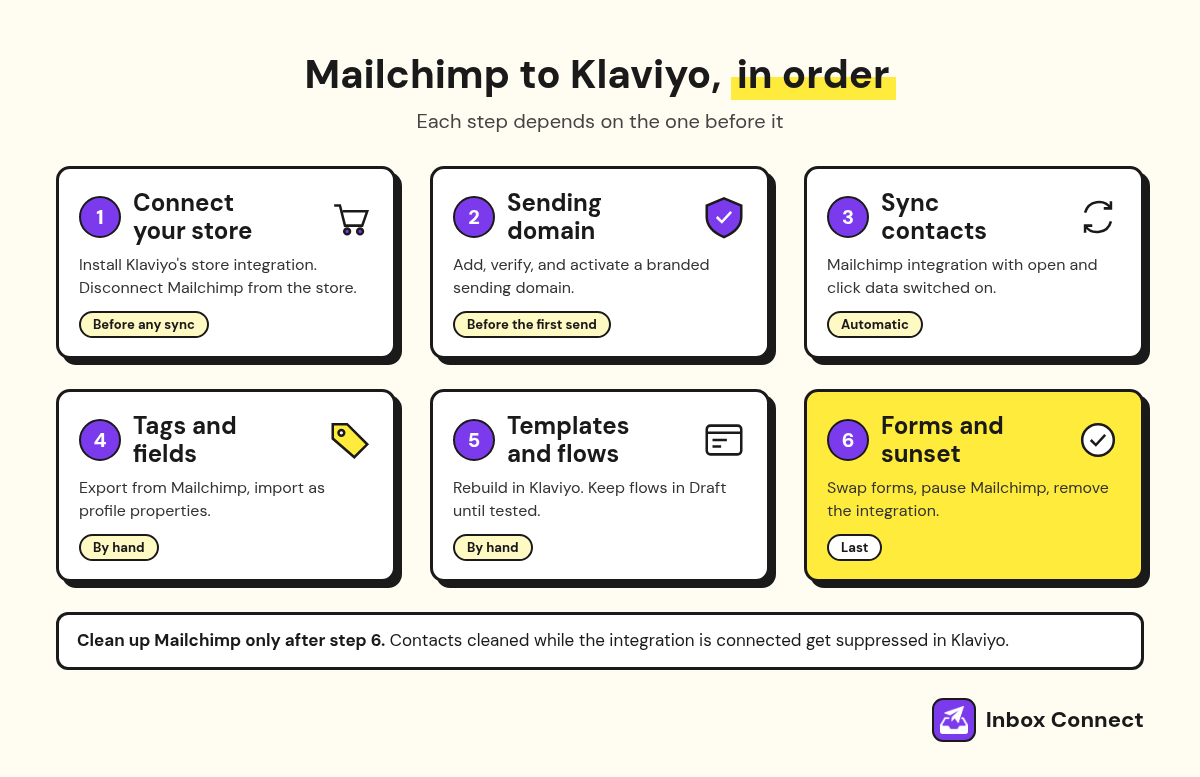
| Step | What you do | Why it goes here |
|---|---|---|
| 1. Store | Connect Shopify (or your platform) to Klaviyo | Order and browsing data start building up right away |
| 2. Domain | Add and verify a branded sending domain | Your first real send should already be authenticated |
| 3. Contacts | Install the Mailchimp integration and sync | Brings subscribers, unsubscribes, cleaned contacts, and engagement |
| 4. Tags and fields | Export from Mailchimp, import as profile properties | The integration skips them |
| 5. Templates and flows | Rebuild in Klaviyo, keep flows off until tested | Nothing here transfers automatically |
| 6. Forms and sunset | Swap forms, pause Mailchimp, remove the integration | Turning Mailchimp off too early loses sign-ups |
The general rules in my guide to switching email marketing platforms apply to any move. What follows is the specific route from Mailchimp into Klaviyo.
Connect your store and sending domain first
Install Klaviyo's integration for your store platform, disconnect Mailchimp from that store, and set up a branded sending domain before you sync a single contact. Skip the disconnect, and your existing subscribers can get those double opt-in emails.
The store goes first because Klaviyo's flows run on store events like Started Checkout and Placed Order. The sooner those land in Klaviyo, the sooner your cart and post-purchase flows have something to trigger on.
Pro tip: Before you disconnect Mailchimp from the store, write down which Mailchimp features rely on that connection, like abandoned cart emails or product recommendations. That list becomes your flow rebuild checklist.
For the domain, go to Settings, then Domains in Klaviyo, add your root domain and the sending subdomain you want to use, add the DNS records it shows, then click Verify and Activate. According to Klaviyo's DNS setup guide, Dynamic routing uses NS records, Static uses CNAME records, and both need a TXT verification record at your root domain.
You don't add a separate SPF record for Klaviyo, and DMARC stays a record you manage yourself. If those terms are fuzzy, my guide to SPF, DKIM, and DMARC covers each one in plain words.
Pro tip: Leave Mailchimp's DNS records alone until cutover. Mailchimp is still sending your campaigns, and pulling its authentication early can push them into spam.
What does the Klaviyo Mailchimp integration move?
The Klaviyo Mailchimp integration moves your subscribers (including unsubscribes and cleaned contacts), your audiences as Klaviyo lists, Mailchimp ratings, and open, click, and receive data for sent campaigns. Tags, custom fields, templates, automations, and forms stay behind.
Setting it up takes a Mailchimp API key and a few checkboxes:
- Create an API Key: In Mailchimp, create a new key just for Klaviyo and save it. Mailchimp only shows the full key once.
- Install the App: In Klaviyo, open Integrations, click Explore apps, search for Mailchimp, and click Install.
- Connect: Paste the key and click Connect to Mailchimp.
- Pick Your Data: Under Advanced, check "Collect open and click data for MailChimp campaigns" and "Create Klaviyo lists from Mailchimp audiences."
- Finish: Click Complete setup and let the historical sync run.
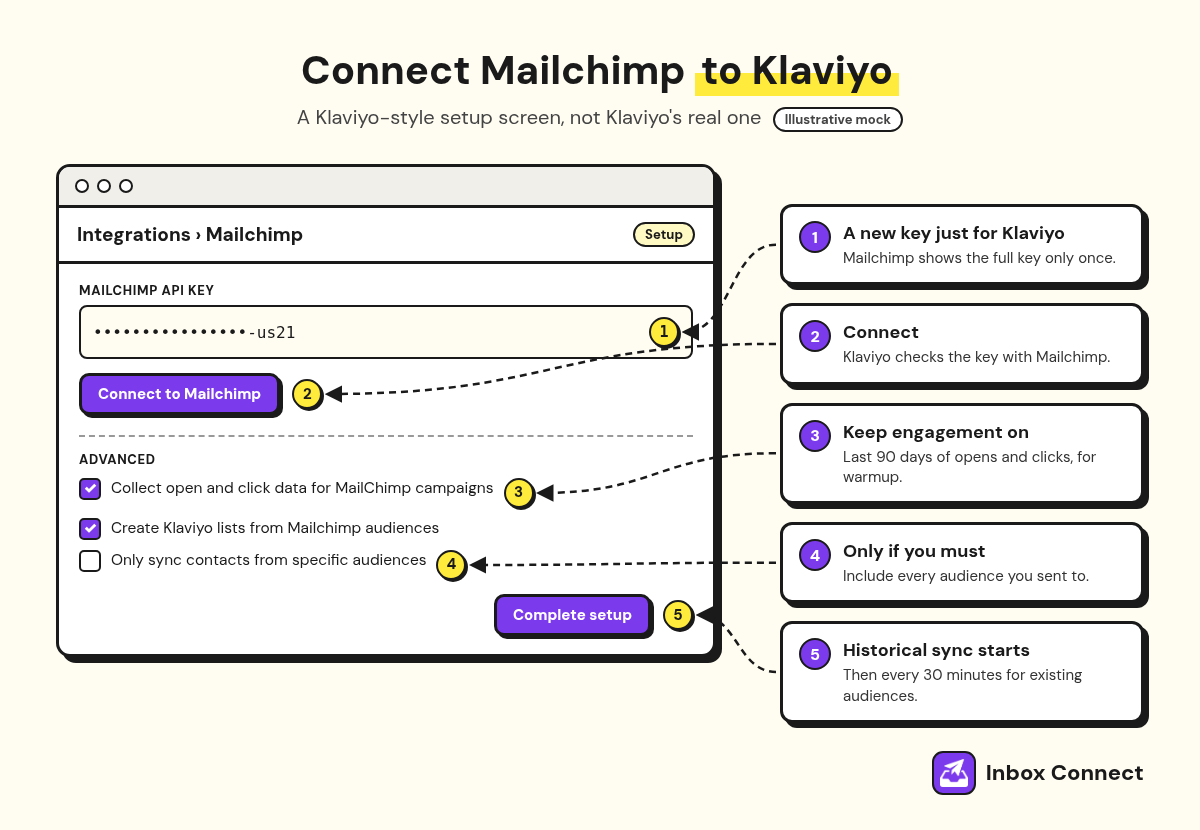
The historical sync pulls your contacts plus the last 90 days of campaign engagement. After that, existing audiences sync every 30 minutes and new ones every six hours, so Mailchimp sign-ups keep flowing across while you rebuild.
Check the engagement box even if you never read old reports. Those Mailchimp opens and clicks are what your warmup segment gets built from.
| Data | Moves with the integration? | What to do |
|---|---|---|
| Subscribers and consent status | Yes | Review statuses before sending |
| Unsubscribes and cleaned contacts | Yes | Spot-check suppressions |
| Audiences | Yes, as Klaviyo lists | Rename lists so they make sense |
| Opens, clicks, receives | Yes, last 90 days | A/B test campaigns don't sync |
| Tags and custom fields | No | CSV import as profile properties |
| Drag-and-drop templates | No | Rebuild in Klaviyo's editor |
| Automations | No | Rebuild as flows |
| Sign-up forms | No | Rebuild in Klaviyo |
Deleting a contact in Mailchimp after you connect doesn't delete them in Klaviyo. And if someone who should be suppressed shows up as subscribed, Klaviyo's fix is to export them from Mailchimp and upload them to your Klaviyo suppression list, before your first send.
For tags and custom fields, export the tagged contacts from Mailchimp and trim the file to the email column plus the tag and field columns you actually use, leaving out the consent columns as Klaviyo's guide says. On upload, choose "Only import the consent in my file," so the import adds profile properties without touching anyone's subscription status.
Weak: Upload the full Mailchimp export, every column, with bulk consent applied. Unsubscribed contacts may now look subscribed, and every profile carries columns nobody will ever use.
Strong: Upload email plus Tags, Customer type, and Signup source, with "Only import the consent in my file" selected. Each becomes a property you can segment on or filter a flow with.
Pro tip: If you choose "Only sync contacts from specific audiences," include every audience you've sent campaigns to. Klaviyo says campaign engagement only comes across for the audiences you include.
Rebuild templates and swap the merge tags
Rebuild your Mailchimp templates in Klaviyo's drag-and-drop editor, and only import HTML for templates that were custom-coded in Mailchimp. Mailchimp doesn't export drag-and-drop templates at all, and Klaviyo recommends its editor anyway so emails stay responsive and easy to edit.
For custom-coded templates, export the HTML, open it in a text editor, and swap every Mailchimp merge tag for its Klaviyo version before you import. Klaviyo requires an unsubscribe link on any marketing template you import, so start with that one.
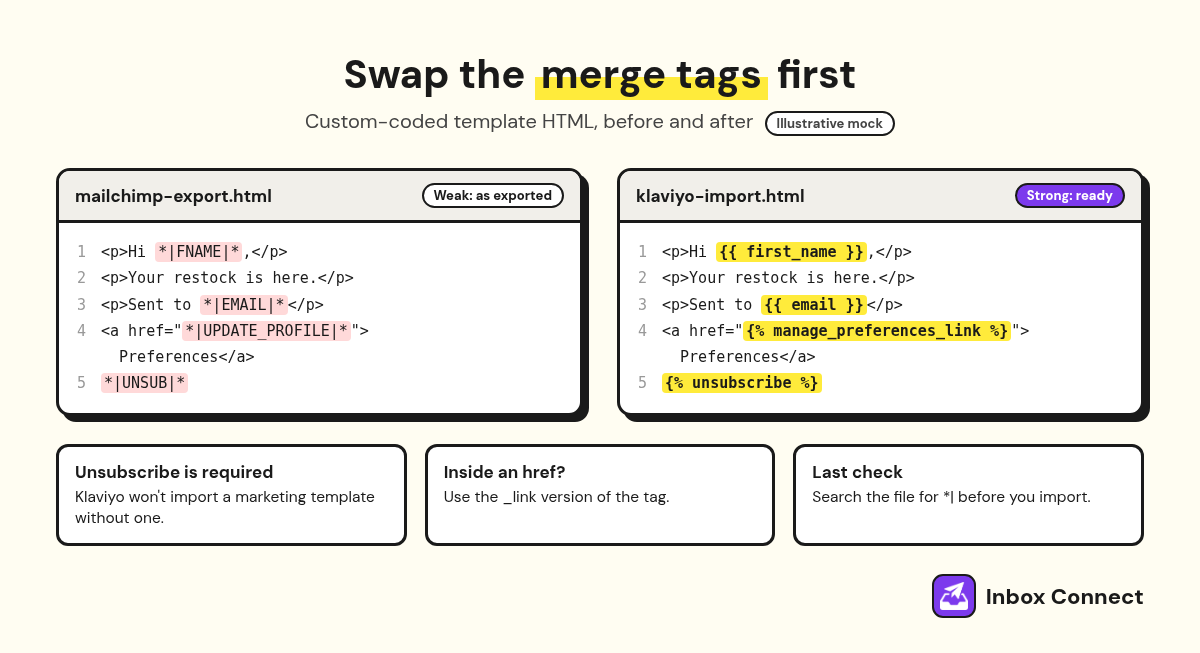
| Mailchimp tag | Klaviyo tag |
|---|---|
*|UNSUB|* | {% unsubscribe %} |
*|FNAME|* | {{ first_name }} |
*|LNAME|* | {{ last_name }} |
*|EMAIL|* | {{ email }} |
*|LIST:COMPANY|* | {{ organization.name }} |
*|UPDATE_PROFILE|* | {% manage_preferences %} |
If the Mailchimp tag sits inside a link's href, use {% unsubscribe_link %} or {% manage_preferences_link %}, because the plain versions generate a whole link. Subject lines and preview text get set on each email in Klaviyo, not in the template.
To import, go to Content, then Templates, open Create, and choose Import email template. Preview it before you use it, and remember that an imported HTML template has to be edited in HTML from then on.
Pro tip: Search the HTML for *| after you swap tags. Any hit left over will show up in a real subscriber's inbox as raw code.
Rebuild automations as Klaviyo flows
Rebuild each Mailchimp automation as a Klaviyo flow, test it, and only then pause the matching automation in Mailchimp. Nothing in Mailchimp's automations transfers, and running both at once is how customers get two welcome emails on the same day.
Start with the flows that already make money: your welcome email sequence and your abandoned cart sequence. Then rebuild post-purchase and win-back, using the notes you took when you disconnected Mailchimp from the store.
Keep each new flow's messages in Draft while you build. In Klaviyo, Draft queues nobody, Manual holds people for your review, and Live sends on its own.
Weak: Build the welcome flow, set it Live, then import your Mailchimp tag file into the same list that triggers it.
Strong: Finish every import first, keep the welcome flow in Draft, then set it Live once the list has settled. Klaviyo warns that CSV imports can trigger list-based flows, including a welcome series.
My email automation strategy guide lays out the build order I use, and it works just as well on a migration.
Warm up on an engaged segment from Mailchimp data
Warm up Klaviyo by sending your first campaigns only to an engaged segment, and build that segment from both Klaviyo and Mailchimp opens and clicks. Klaviyo's guide to creating an engaged segment shows how: subscribed to email AND (opened OR clicked in the last 30 days), with the Mailchimp Opened Email and Clicked Email metrics added alongside Klaviyo's.
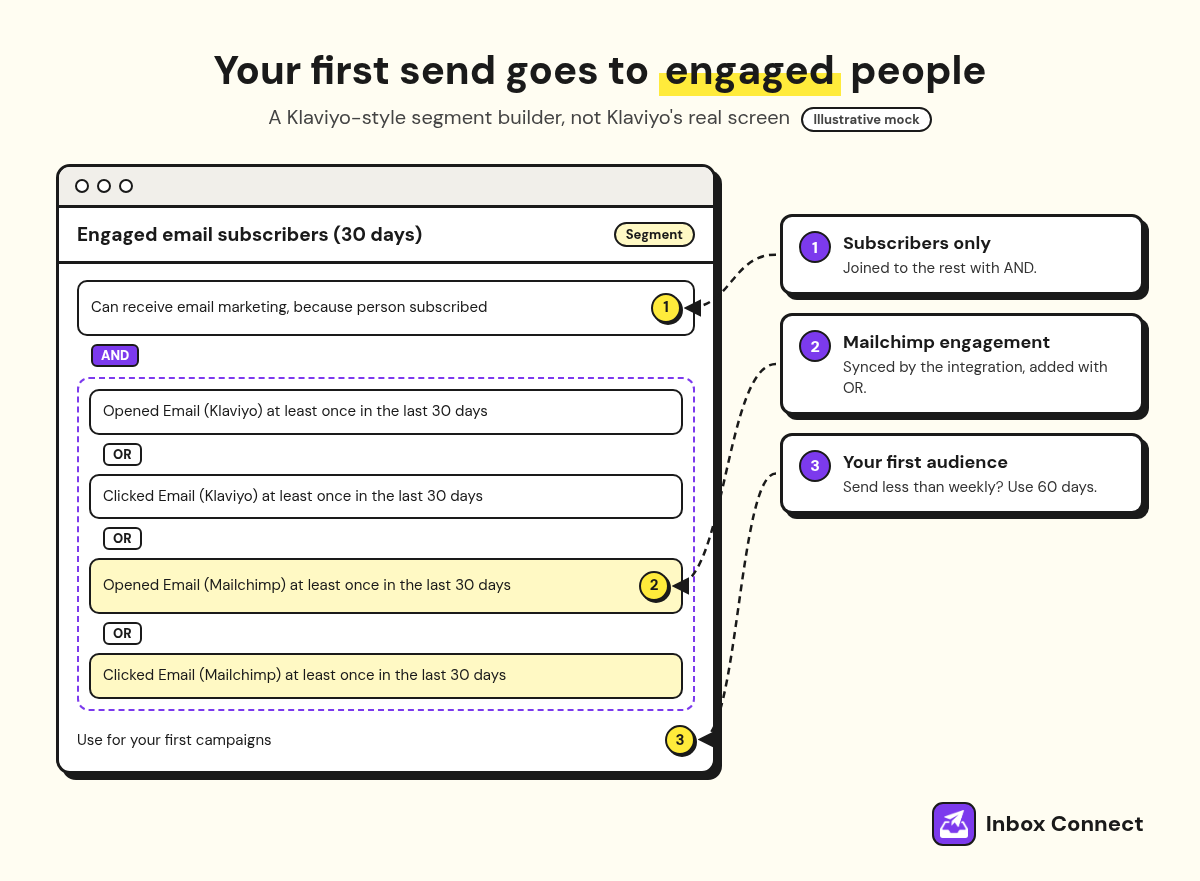
If you send less than weekly, stretch the window to 60 days. Klaviyo also suggests a "subscribed in the last 15 days" condition for brand-new subscribers, but check your imported subscription dates first, since contacts recorded as newly subscribed during the migration would sneak in.
Newer accounts with at least 5,000 active email profiles, a finished Mailchimp sync, and enough recent engagement can get Klaviyo's guided warming, which recommends your audience for you. If your account qualifies, Klaviyo makes it available inside the app.
For a day-by-day ramp, follow my email warmup schedule. Keep your Mailchimp sends to non-engaged contacts paused while it runs, because the inbox providers are watching both.
Pro tip: Don't open your Klaviyo account with a "We've moved to a new platform!" email. Subscribers don't care what you send from, so lead with your most reliable content.
Switch your forms, then sunset Mailchimp
Rebuild your sign-up forms in Klaviyo, remove the Mailchimp form code from your site, test the whole journey, and only then remove the integration and close Mailchimp. Klaviyo says you can't redirect Mailchimp forms to Klaviyo, so every form gets rebuilt in Klaviyo's form builder or a list growth tool that integrates with it.
Embedded Mailchimp forms sit in your site code between <!-- Begin Mailchimp Sign-up Form --> and <!--End mc_embed_sign-up-->. Delete that block, then watch your Mailchimp audiences for a few days, because a new sign-up there means a form you missed.
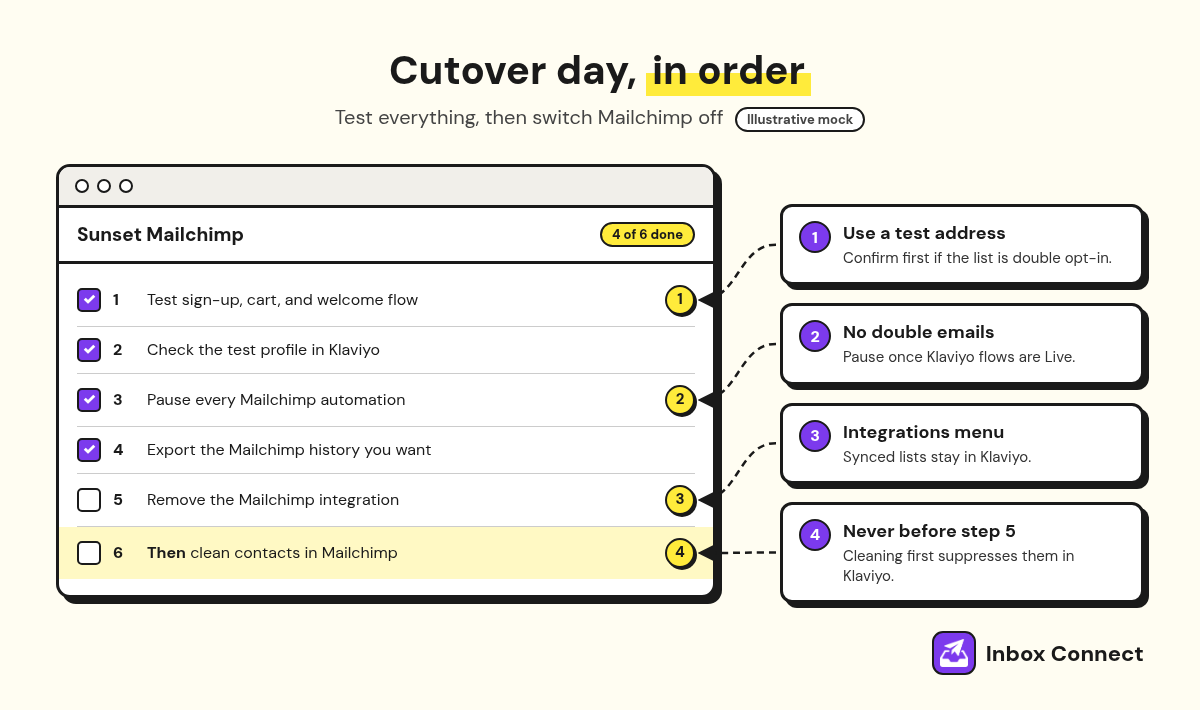
Then run the cutover in this order:
- Test the Journey: Sign up through each form with a test address, abandon a cart, and confirm the welcome flow fires (confirm first if the list is double opt-in).
- Check the Profile: Open the test profile in Klaviyo and make sure the events and properties look right.
- Pause Mailchimp: Pause every Mailchimp automation so nobody gets emailed twice.
- Save Your History: Export the Mailchimp account data you want to keep, like reports and campaign HTML, from Mailchimp's Manage my data page.
- Remove the Integration: In Klaviyo, open Integrations, click the action button next to Mailchimp, and choose Remove integration.
- Then Clean Mailchimp: Archive or delete contacts in Mailchimp only after the integration is gone.
Step six is the one people get backwards. Klaviyo's guide says contacts you clean in Mailchimp while the integration is connected get suppressed in Klaviyo, which can quietly shrink your sendable list.
What usually breaks in a Mailchimp to Klaviyo migration?
What usually breaks is anything that relied on Mailchimp doing something in the background: the store connection, tags, merge tags, live automations, and embedded forms. Here's how each failure shows up and what fixes it.
| What you see | Usual cause | Fix |
|---|---|---|
| Old subscribers get a "please confirm" email | Mailchimp still connected to Shopify during sync | Disconnect Mailchimp from the store before syncing |
| Tag-based segments are empty | Tags and custom fields never imported | CSV import as profile properties |
Raw *|FNAME|* in a sent email | Merge tag missed in imported HTML | Search the HTML for *| before importing |
| Customers get two welcome emails | Mailchimp automation still running | Pause Mailchimp automations once flows are Live |
| Old subscribers enter the welcome flow | Flow Live before the CSV import | Keep flows in Draft until imports finish |
| Mailchimp audience still growing | A form you didn't swap | Find the old embed code and replace it |
| Sendable list suddenly shrinks | Mailchimp cleanup before removing the integration | Remove the integration first, clean second |
None of these needs a developer, just the steps in order and a test before anything gets switched off.
If your account is big enough that a bad week costs real money, or your flows are more involved than a welcome and a cart reminder, that's when it's worth having someone run the migration with you. Our Klaviyo agency does exactly that, from the domain setup to the cutover checks.
FAQ
Does Klaviyo have a Mailchimp integration?
Yes, Klaviyo has a built-in Mailchimp integration that syncs subscribers, unsubscribes, cleaned contacts, audiences as lists, Mailchimp ratings, and open, click, and receive data for campaigns sent in the last 90 days. Klaviyo recommends removing it once you've fully moved over.
Can I import Mailchimp templates into Klaviyo?
Only custom-coded ones. You can export a custom-coded Mailchimp template as HTML, swap the merge tags, and import it in Klaviyo, but drag-and-drop templates can't be exported and have to be rebuilt in Klaviyo's editor.
Will my Mailchimp unsubscribes carry over to Klaviyo?
Yes, the integration syncs unsubscribes and cleaned contacts. Spot-check suppressions after the sync anyway, and upload any contact who should be suppressed but isn't to your Klaviyo suppression list.
How long does a Mailchimp to Klaviyo migration take?
A Mailchimp to Klaviyo migration takes about as long as rebuilding your automations, because the store connection, sending domain, and contact sync are quick setup jobs and the flows are the slow part. Keep Mailchimp running until your Klaviyo flows are tested and your warmup sends look healthy.
Do I need to warm up when moving from Mailchimp to Klaviyo?
Yes. Klaviyo says any new sender needs to warm up when moving to a new email service provider, so send your first campaigns to an engaged segment and grow the audience as the numbers hold.
Final Thoughts
Start today by disconnecting Mailchimp from your store, connecting your store to Klaviyo, and setting up your sending domain. Then sync Mailchimp with open and click data switched on, and write down every tag, field, template, automation, and form you'll be carrying over by hand.
If you'd like a second pair of hands, Inbox Connect's Klaviyo agency can run the migration with you. Either way, you now know what Klaviyo brings across, what you rebuild, and the order that keeps your list safe.
Russ